Blooket Join: How to Join a Blooket Game (Step-by-Step)
Your teacher has just put a game code on the board, the class is racing to get in, and you do not want to be the last name in the lobby. Good news: Blooket join takes less than a minute once you know where to go. This guide walks you through every way to join a Blooket game — with a Game ID, with a QR code, and with a join link — plus what to do when a code refuses to work.
The most important thing to know before you start: joining a live Blooket game is free, it works in any web browser, and you do not need a Blooket account just to play. An account only matters if you want to use your own collected Blooks and save your stats, which we cover below.
What You Need Before You Join a Blooket Game
Joining is simple, but you do need three things ready:
- A device with a browser — a Chromebook, laptop, tablet, or phone all work. There is nothing to install.
- An internet connection — the school or home Wi-Fi is fine.
- The Game ID from your host — this is the 7-digit code your teacher or host displays when they launch the game. Without a live code from a host, there is no game to join. Codes are generated fresh for every session and expire when the host ends the game, so a code from yesterday’s lesson will not work today.
If your teacher has not shared a code yet, there is nothing you can do but wait — codes cannot be looked up or guessed. If you want to practise in the meantime, you can play on your own instead; our guide to Blooket Solo mode explains how that works.
Method 1: Join With a Game ID (Step-by-Step)
This is the classic Blooket join method and the one most classrooms use.
- Open your browser and go to play.blooket.com. This is Blooket’s dedicated join page — bookmark it on classroom devices to save time.
- Type the 7-digit Game ID exactly as your host shows it. The code is numbers only, so if you see letters in what you copied, something has gone wrong.
- Press the join/enter button. If the code is live, you will move straight to the nickname screen.
- Enter a nickname. This is the name everyone sees in the lobby and on the leaderboard, so keep it school-appropriate — hosts can remove players with unsuitable names. Note: if your host has switched on the “Use Random Names” setting, you will be given a fun generated nickname instead and cannot type your own.
- Choose your Blook. While you wait in the lobby you can pick the character that represents you in the game. Guests choose from the starter selection; signed-in players can use Blooks from their own collection.
- Wait for the host to start. Once everyone is in, the host launches the game and questions begin on your device.
That is all there is to it. From opening the browser to sitting in the lobby usually takes under 30 seconds.
Method 2: Join With a QR Code
If you are playing on a phone or tablet, scanning is even faster than typing. When a host launches a game, the lobby screen shows a QR code alongside the Game ID. Simply open your device’s camera, point it at the code, and tap the link that pops up. You will land on the same nickname screen as everyone else — just type your nickname, pick a Blook, and wait for the start.
QR codes are ideal for younger students because there are no digits to mistype. If your camera will not scan, check that the screen brightness on the board is up and that you are not too far away — or fall back to Method 1 and type the code instead.
Method 3: Join With a Join Link
Hosts can also share a direct join link, which is the best option for virtual or hybrid classes. If your teacher posts a link in Google Classroom, Teams, or your class chat, just click it. The link carries the game session with it, so you skip the code-entry screen entirely and go straight to entering your nickname.
One caution: a join link only works while that specific game session is live. If you click an old link from a previous lesson, you will get an error — ask your host for the current link or code instead.
Do You Need an Account to Use Blooket Join?
No. Anyone with a live Game ID can join a game as a guest, which is how most students play. However, there are two good reasons to sign in before you join:
- Your own Blooks: guests pick from the default Blook selection, but signed-in players can play as any Blook they have unlocked. If you have spent tokens on packs — see our guide to Blooket Blooks — you will want to be logged in to show them off.
- Saved stats and rewards: playing while signed in means your results, tokens, and progress are recorded on your account.
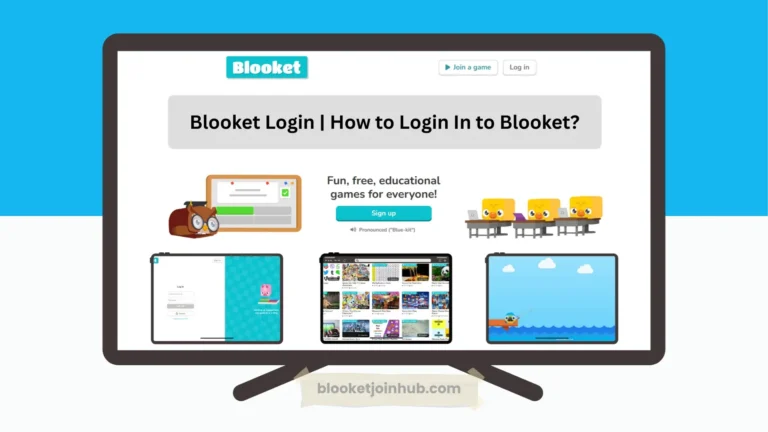
The catch is timing: you must log in before entering the Game ID. If you join as a guest first, you cannot switch to your account mid-lobby — you would have to leave and rejoin. If you do not have an account yet, our Blooket Sign Up guide takes you through creating one, and the Blooket Login guide covers signing in on shared classroom devices.
How to Join a Blooket Homework Game
Homework games work slightly differently because there is no live lobby. When a teacher assigns homework, they share a homework link or QR code instead of a Game ID. Open the link, enter your name, and the game starts immediately on your own device at your own pace. Your score is sent to your teacher when you finish, so there is no need to wait for anyone else. You can close and come back to a homework game on the same device if you need a break, but do not switch devices halfway through.
Blooket Join Not Working? Quick Fixes
If your code is rejected or the page will not load, work through this list — one of these fixes solves almost every join problem:
- “Invalid Game ID” or the code is not recognised: check every digit against the host’s screen. Codes are 7 digits; older guides mention 6-digit codes, but current games use 7. If the digits are right and it still fails, the session has probably ended — ask the host to relaunch and give you the new code.
- The game has already started: hosts can allow late joiners, but if that setting is off you cannot enter mid-game. Let your teacher know so they can enable late join or let you into the next round.
- The page is blocked or will not load: some school networks block game sites during certain hours. Try refreshing once; if it persists, tell your teacher — they may need IT to allow play.blooket.com.
- You joined with the wrong name: leave the lobby before the game starts and rejoin with the correct nickname. Once the game begins, names are locked in.
- The lobby is full or you were removed: rejoins need a fresh invite from the host, so ask them to let you back in with the same live code.
What Happens After You Join?
Once the host starts the game, questions appear on your screen, and how you score depends on the mode your teacher picked — you might be racing rivals in Gold Quest, defending towers, or running a café. Curious what your teacher is choosing from? Browse our overview of all Blooket Game Modes. Teachers who want to run their own sessions should read our Blooket Host walkthrough.
Frequently Asked Questions
Is Blooket join free?
Yes. Joining a live game with a Game ID, QR code, or link is completely free and never asks for payment details.
Can I join a Blooket game without an account?
Yes — guests can join any live game. You only need an account to host games, save stats, and use your own unlocked Blooks.
How many digits is a Blooket Game ID?
Current Game IDs are 7 digits. Very old posts and videos sometimes show 6-digit codes from before the change.
Can I join a game that has already started?
Only if the host enabled the “Allow Late Join” setting. Otherwise you will need to wait for the next game.
Now you know every Blooket join method. Next time the code goes up on the board, open play.blooket.com, type it in, and you will be in the lobby before most of the class. Good luck — and may your Blook be ever in your favour. For a deeper look at codes themselves, read our companion guide to the Blooket Join Code.