Blooket Dashboard | An Overview, Create Sets & Track Progress
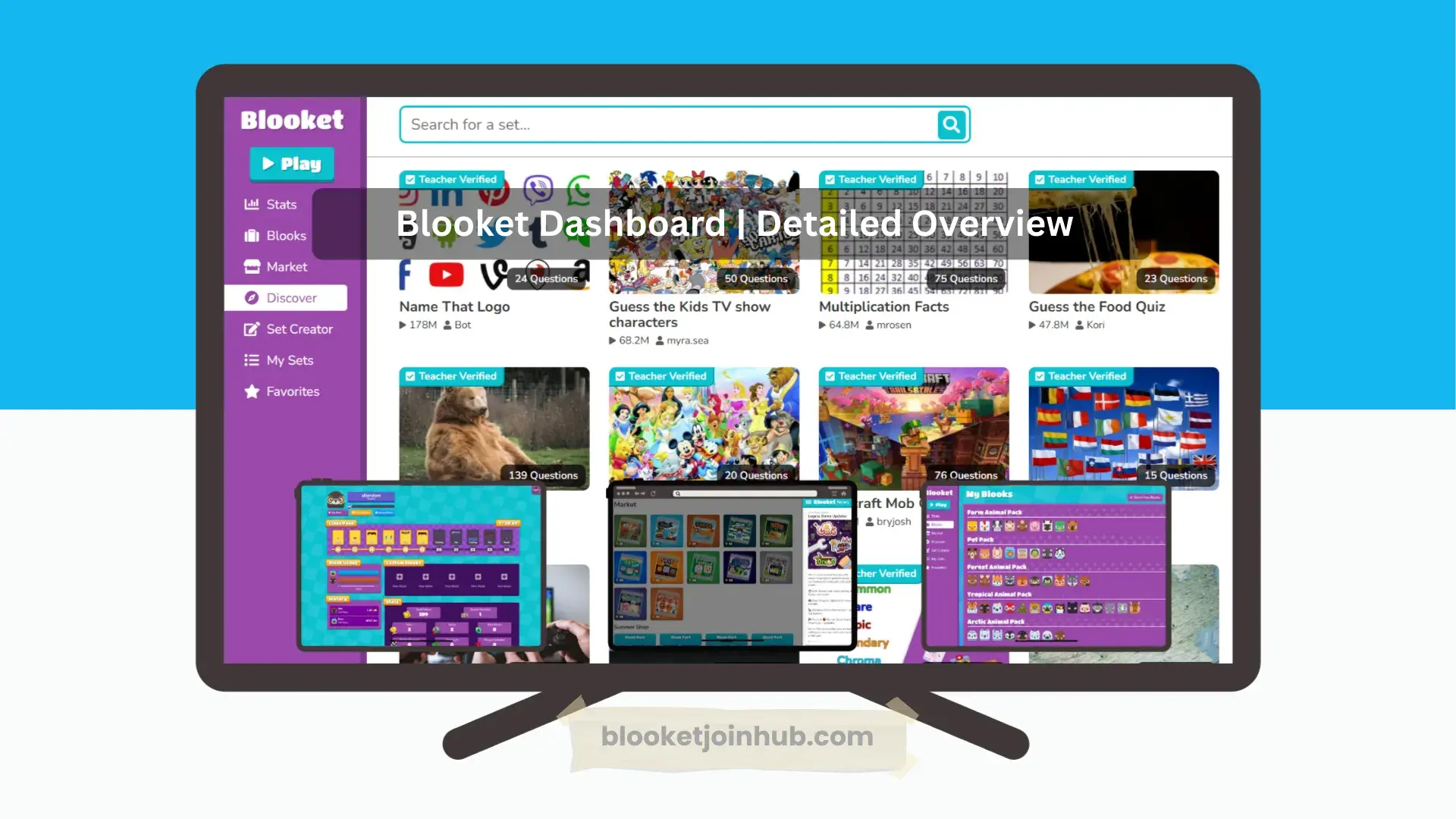
Blooket is an educational platform that delivers learning in a gamified way. It offers a variety of tools and features that make it interesting and unique. When you log in to Blooket or create a new account, you will be greeted by a user-friendly dashboard. Where you will find options like Create, Blooks, Play, Market, and more.
Do you want to explore more about the Blooket dashboard? It has a friendly dashboard that makes it easy to navigate, even for new users. In this article, we will explain each section of the dashboard of blooket and how these tools work.
Blooket Dashboard | How to Use each Section?
 Blooket Teacher Dashboard
- Blooket Student Dashboard
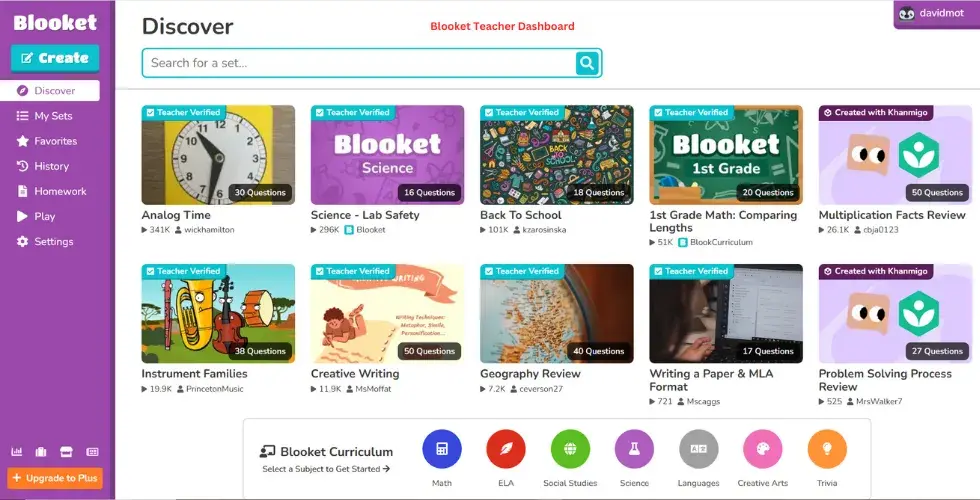
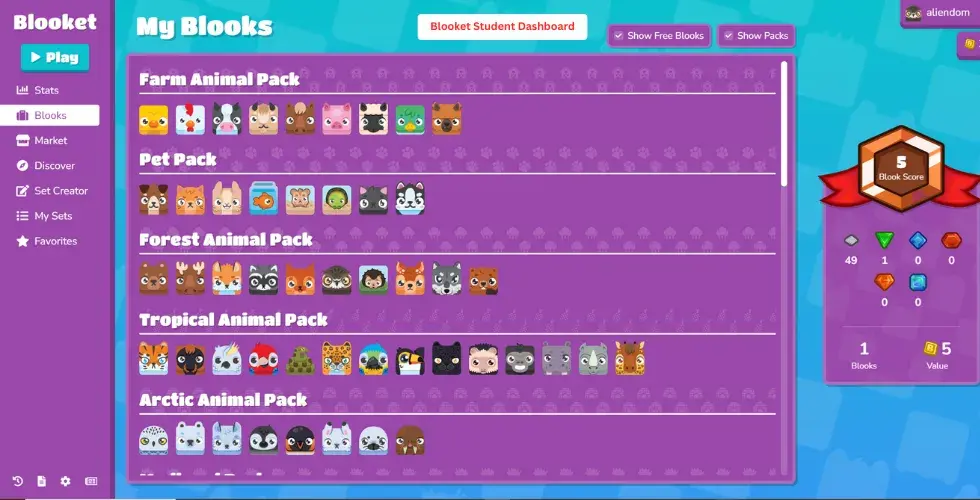
The Blooket Dashboard is a hub where you can create question sets, manage games, track progress, unlock Blooks, and more. The dashboard of blooket is user-friendly and includes all the features that make it engaging and attractive.
To enjoy learning in an easy and interactive way, it’s important to understand how the dashboard works. The layout is slightly different for students and teachers. Let’s explore each part of its dashboard.

Play Button

If your friend or teacher shares a joining ID with you, you can join a Blooket game by clicking on the Play button. After that, simply enter the game ID to start playing.

Discover Button
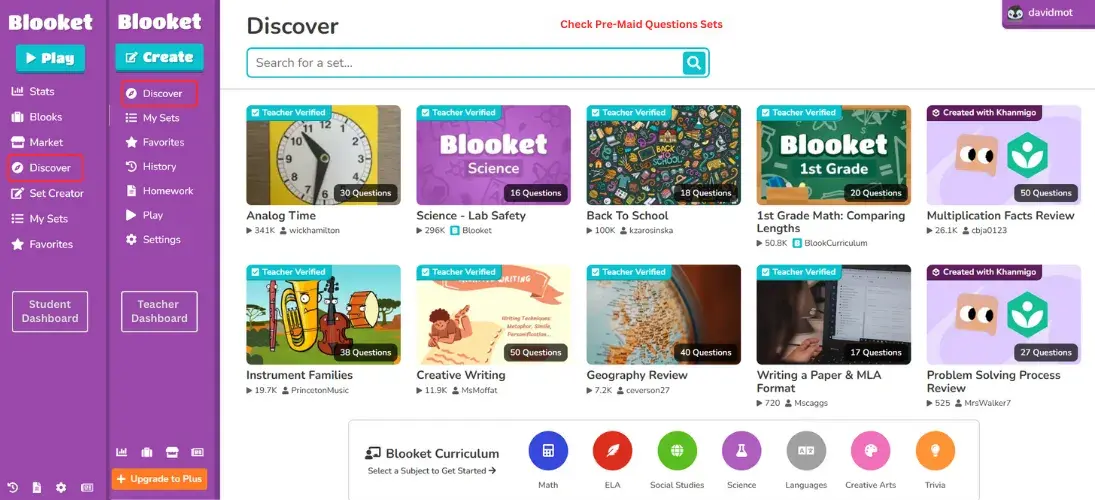
Blooket has a large library of premade question sets that you can use to host or play solo games. When you click on the Discover button, you’ll see question sets created by other educators. You can use these sets in your own games. You can search by category or use the search bar to find specific topics. You can also play these sets or host them for your audience.

Create Button
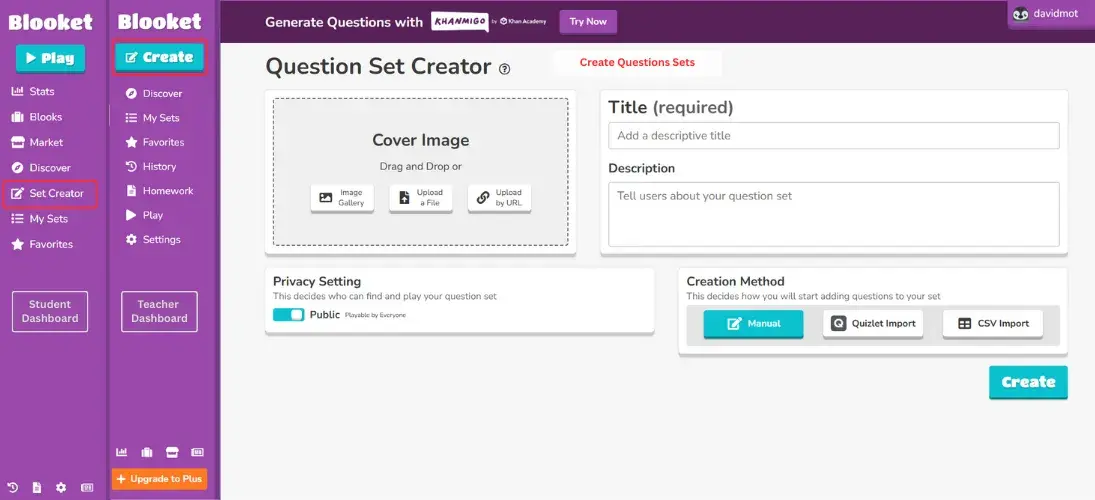
If you want to create your own question sets based on your subject or audience, click on the Create button. Here, you can make customizable question sets and even add videos, images, and voice notes. This feature is helpful whether you are a teacher or a trainer, as it allows you to tailor your content and host it for your audience.

My Sets Section
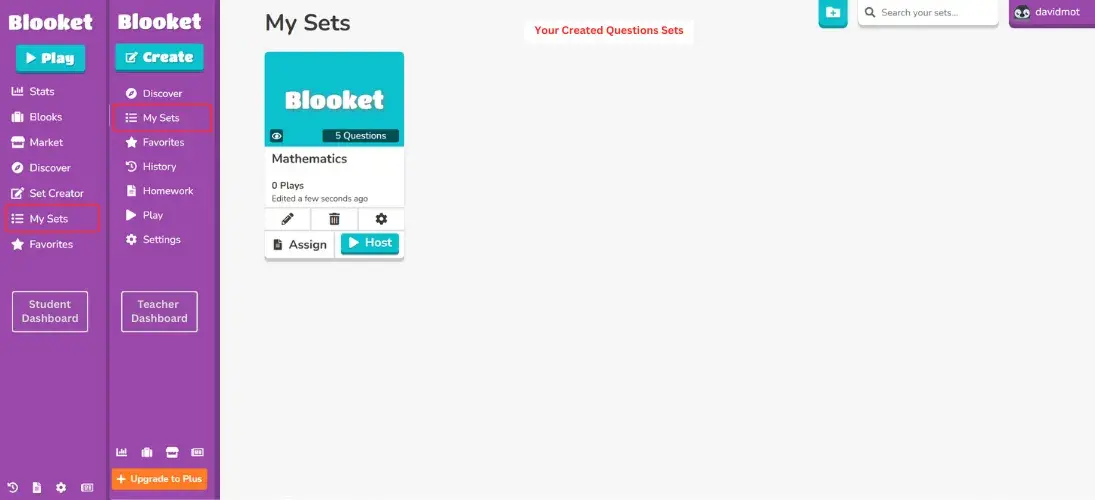
In this section, you’ll find all the question sets you’ve created. You can assign them as homework to students, play them solo to improve your knowledge, or host them live for a group or class.

Stats Section
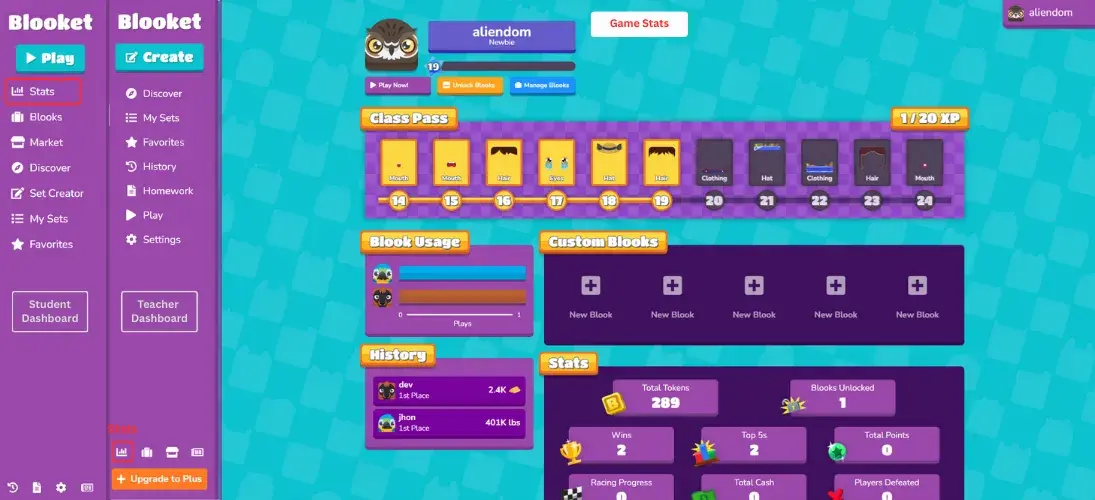
This section helps you track your progress. You can see how many games you’ve played, how many tokens you’ve earned, the Blooks you’ve unlocked, and how many answers you’ve gotten correct. All of this information is available in the Stats section.

Blook Section
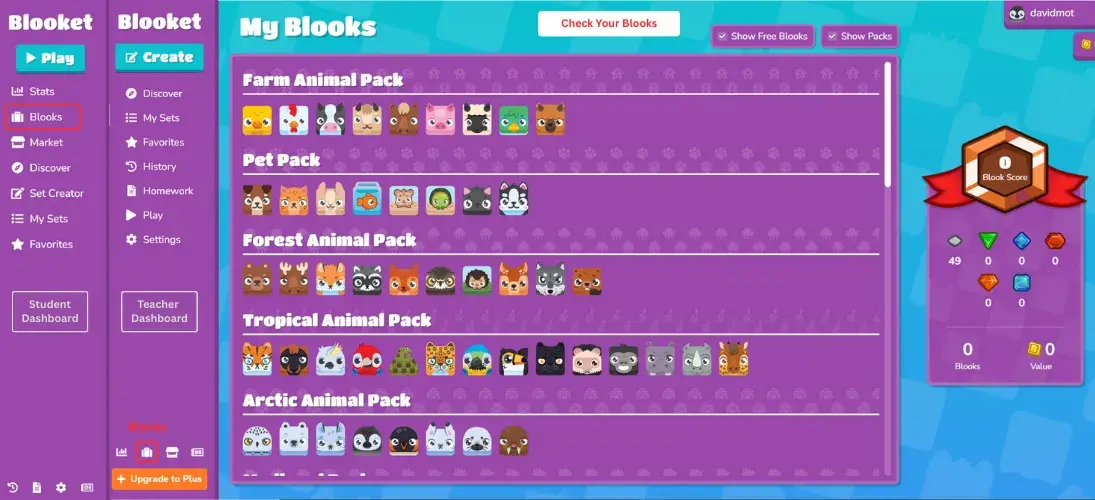
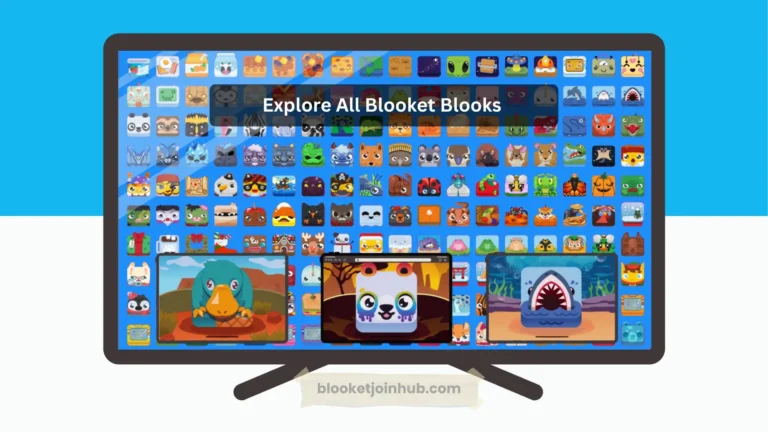
Blooks are character avatars used in Blooket games. You may have noticed that each player has a different avatar while playing. In the Blook section, you can view all the blooket Blooks you own. Some are free, while others need to be unlocked or purchased using the coins you earn by playing games.

Market Section
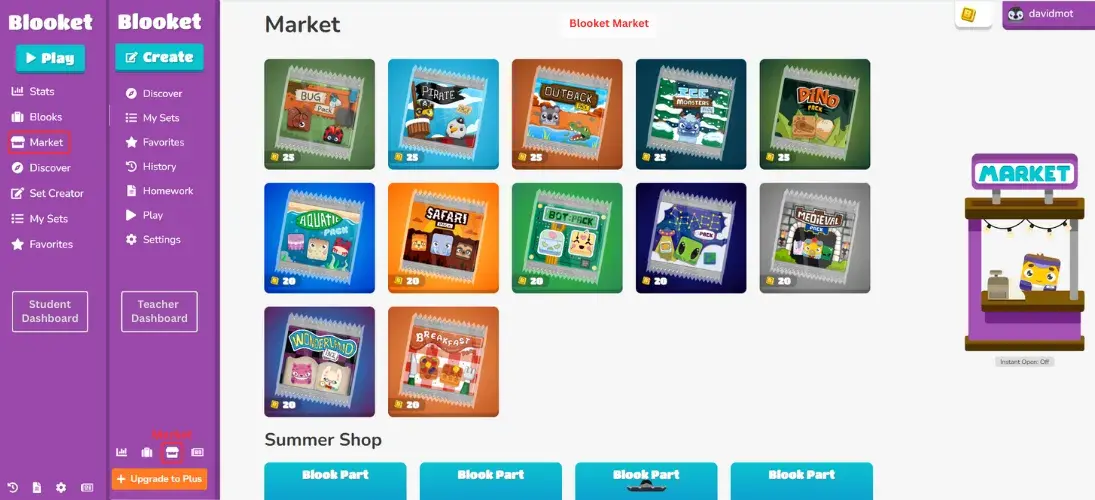
When you play a game and perform well, you earn coins. These coins can be used to buy Blooket items from the Market. You can purchase Blooket packs that unlock new Blooks (character avatars) for use in the game. The market also features special digital items during festivals like Spooktober or Christmas.
History Section
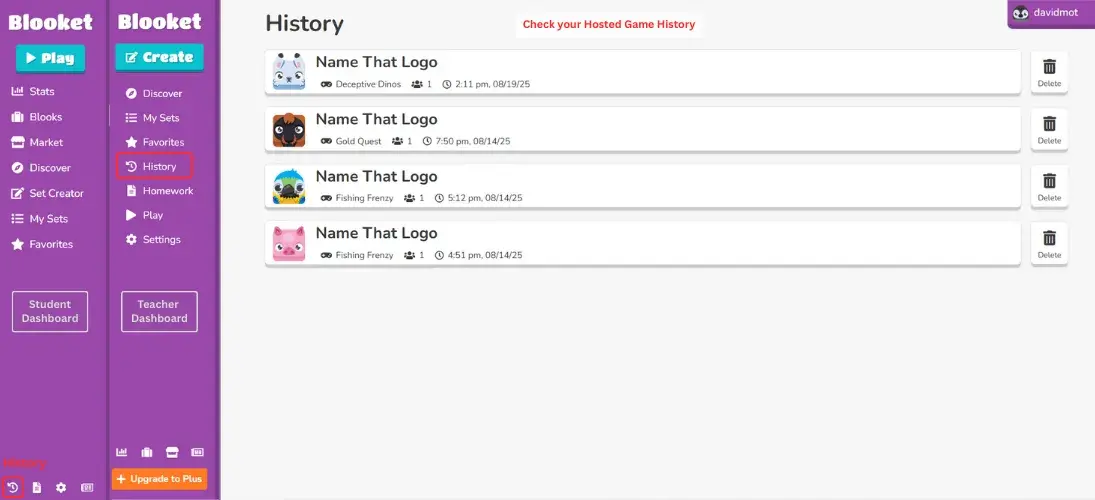
In the History section, you can view your game history, including the games you have hosted and their results. It shows the question sets used, the date and time of the session, how many players participated, and what their scores were. This is a helpful tool for tracking your past hosted games.

Favorites Section
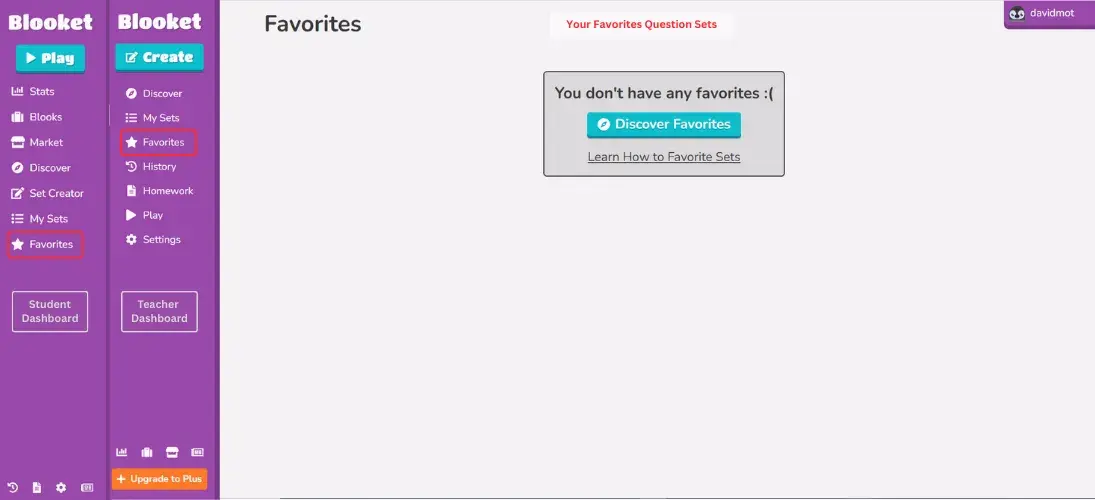
If you like any question set from the Discover section or from your own created sets, you can bookmark them by clicking the star icon. These will then appear in the Favorites section for quick access whenever you need them.

Homework Section
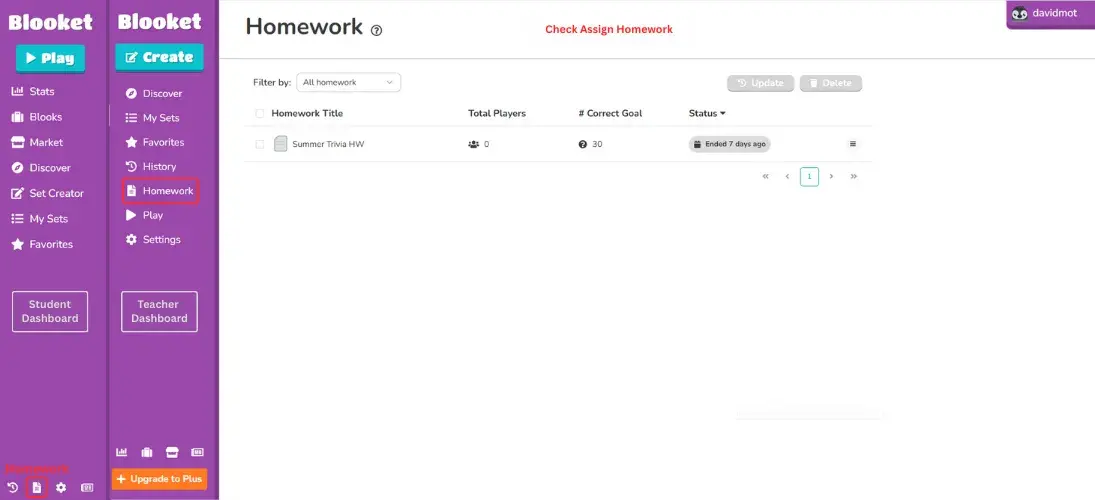
When you assign homework to your students, you can select the due date. In this section, you can track how many assignments you’ve given, how many students have participated, and what their scores were. It helps you monitor student engagement and performance easily.

News Section
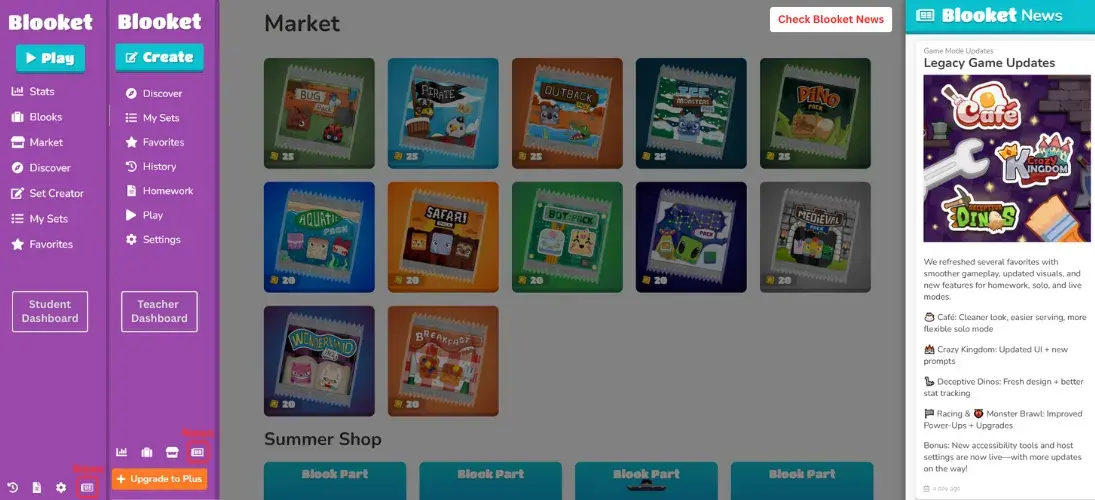
When you click on the News section, you’ll get the latest updates about Blooket. This section keeps you informed about new features, events, changes, and anything new or removed from the platform.

Blooket Settings
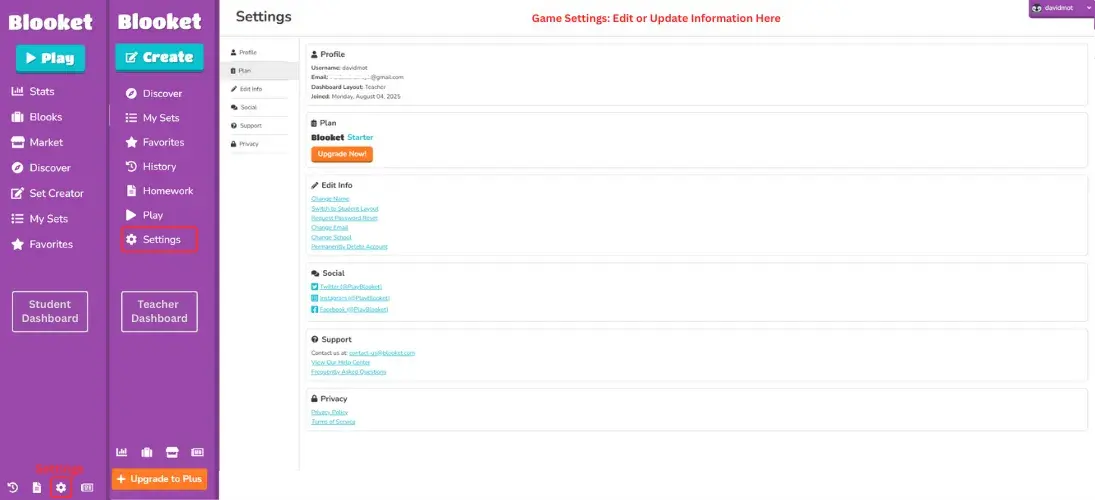
By clicking on the Settings section, you can view and manage your profile information such as your email, username, account type, and join date. You can also read Blooket’s policies and find links to their official social media accounts.
In Settings, you can do:
These sections are all part of the simple and user-friendly Blooket dashboard, designed to make your experience smooth and engaging.
Blooket Dashboard Without an Account

What if you do not have a Blooket account? No worries you can still access and use it, as it is user friendly and allows students to join games without creating an account. To join a game simply go to the official website www.blooket.com and click on Join a Game. Then enter the Game ID shared by your teacher or host and you will be able to participate right away.
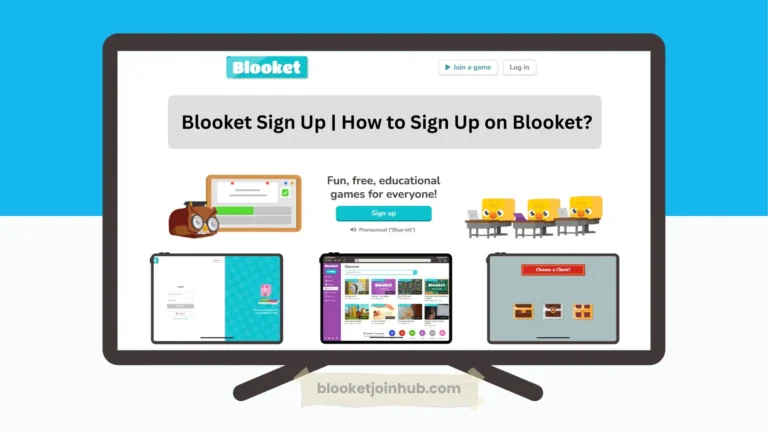
However if you want to access the full features of the Blooket dashboard such as creating question sets, tracking stats or customizing your profile you will need to sign up blooket account. You can also follow our step by step Blooket signup guide to get started quickly.
How can I Logout to Blooket?
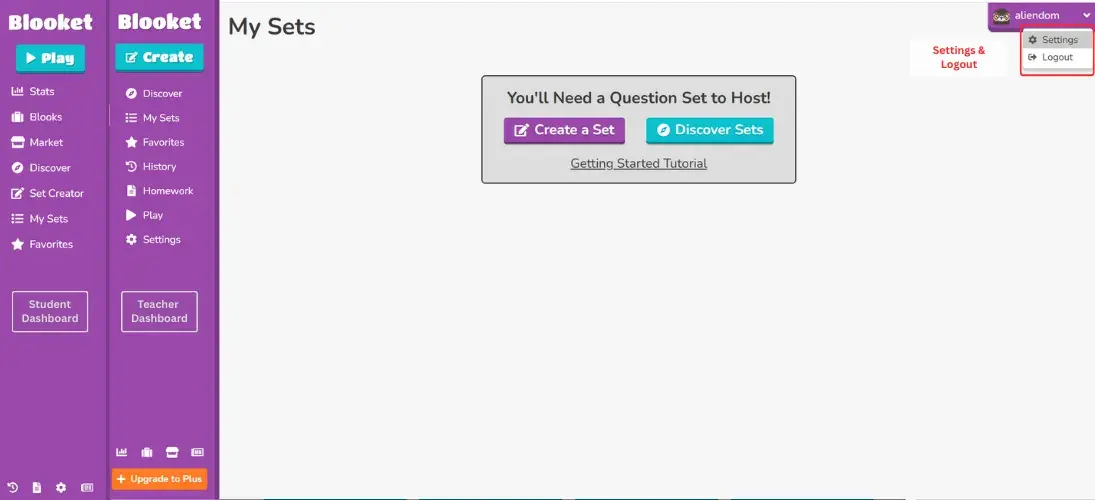
To log out, click on your profile icon on the dashboard and select “Logout” from the dropdown menu.
Why Understanding the Blooket Dashboard Matters
Knowing how to use the Blooket dashboard is really helpful for both teachers and students. It keeps everything organized in one place, like games, homework, scores, and favorite sets. When you understand how the dashboard works, it’s easier to find what you need and use Blooket more effectively. Blooket is widely used in K–12 classrooms, especially in middle and high school settings. Some college instructors also use it for interactive reviews.
Teachers can quickly track student progress, assign homework, and plan fun learning activities based on students’ needs. Students can also review past games and easily access their favorite question sets to practice more. The dashboard also saves time because you don’t have to search for information or assignments in different places.
Overall, understanding the Blooket dashboard makes learning and teaching simpler, more organized, and much more enjoyable.
Conclusion
In short, the Blooket dashboard is simple and easy to use, even for new users. Understanding how it works can help you save time and learn more efficiently. The dashboard offers useful tools that help both teachers and students stay organized and work smarter. Once you understand the dashboard, you can use Blooket more effectively and with ease and effectively.